
Many Android users explore modified apps to unlock premium features, play offline without limits, or test functionality before buying the official version. However, installing apps outside the Google Play Store can be confusing due to new file formats like XAPK and strict Android security updates.
Note from the Editor: We have tested the methods in this guide on devices running Android 10 through Android 15 (including Samsung One UI and Google Pixel) to ensure 100% accuracy.
This guide explains the technical process of installing MOD APKs, XAPKs, and OBB data files, highlights real risks, and provides fixes for common errors—without encouraging misuse.
What Is a MOD APK?

A MOD APK is an unofficially modified version of an Android application package. It is altered outside the original developer’s release to change how the app functions.
How it differs from other formats
-
Original APK: The official package signed by the developer (e.g., from Google Play).
-
APK Bundles (XAPK / APKM): Modern container formats used by heavy games (like PUBG or Genshin Impact). These include split APKs and resources, requiring a specific installer.
⚠️ Disclaimer: MOD APKs are unofficial. They aren’t endorsed by developers and may behave differently from the original app.
Is Installing MOD APK Safe?
Safety depends entirely on the source and how you use the file.
Potential Risks
-
Malware: Repackaged files can contain hidden spyware. Always scan files with VirusTotal before installing.
-
Account Bans: Using mods in online competitive games often leads to permanent bans.
-
Instability: The app might crash if it conflicts with your specific Android version.
Best Practices for Safety
-
Use Offline Mode: Best for single-player games.
-
No Main Accounts: Never log in with your primary Google or Facebook account.
-
Sandbox Environment: If possible, use a separate device or an emulator (like BlueStacks) for testing.
Preparation: Enable "Install Unknown Apps"
Before installing any file, you must allow your phone to trust third-party sources. The steps vary slightly by Android version.
For Android 13, 14, and 15
-
Go to Settings → Security & privacy (or Apps).
-
Tap on Special app access.
-
Select Install unknown apps.
-
Choose the app you will use to download/install the file (e.g., Chrome, File Manager, or ZArchiver).
-
Toggle ON "Allow from this source".
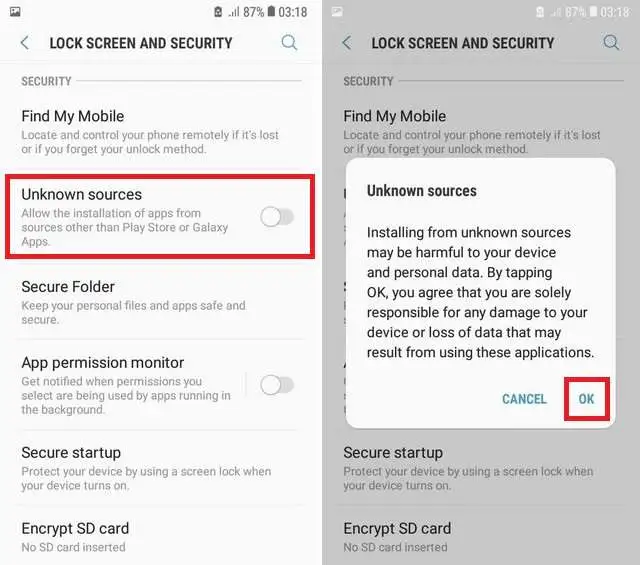
For Android 10 – 12
-
Go to Settings → Privacy or Security.
-
Find Install unknown apps.
-
Select your browser/file manager and enable permission.
Method 1: How to Install Standard MOD APK Files
This is the most common method for simple apps and lightweight games.
Step 1: Uninstall the Original App If you have the Play Store version installed, you must uninstall it first. MOD APKs use a different digital signature, so they cannot overwrite the official app.
-
Exception: If you use a specialized tool like Cloner, you might keep both, but this is advanced.
Step 2: Download the MOD APK Download the file from a trusted source. Ensure the file ends in .apk.
Step 3: Install the File
-
Open your File Manager or browser downloads.
-
Tap the APK file.
-
Tap Install when prompted.
-
Wait for the system to verify the app (Play Protect may show a warning; tap More details -> Install anyway if you trust the source).
Step 4: Launch and Test Open the app. If it crashes immediately, check the "Troubleshooting" section below.
Method 2: How to Install XAPK and APKM Files (Split APKs)
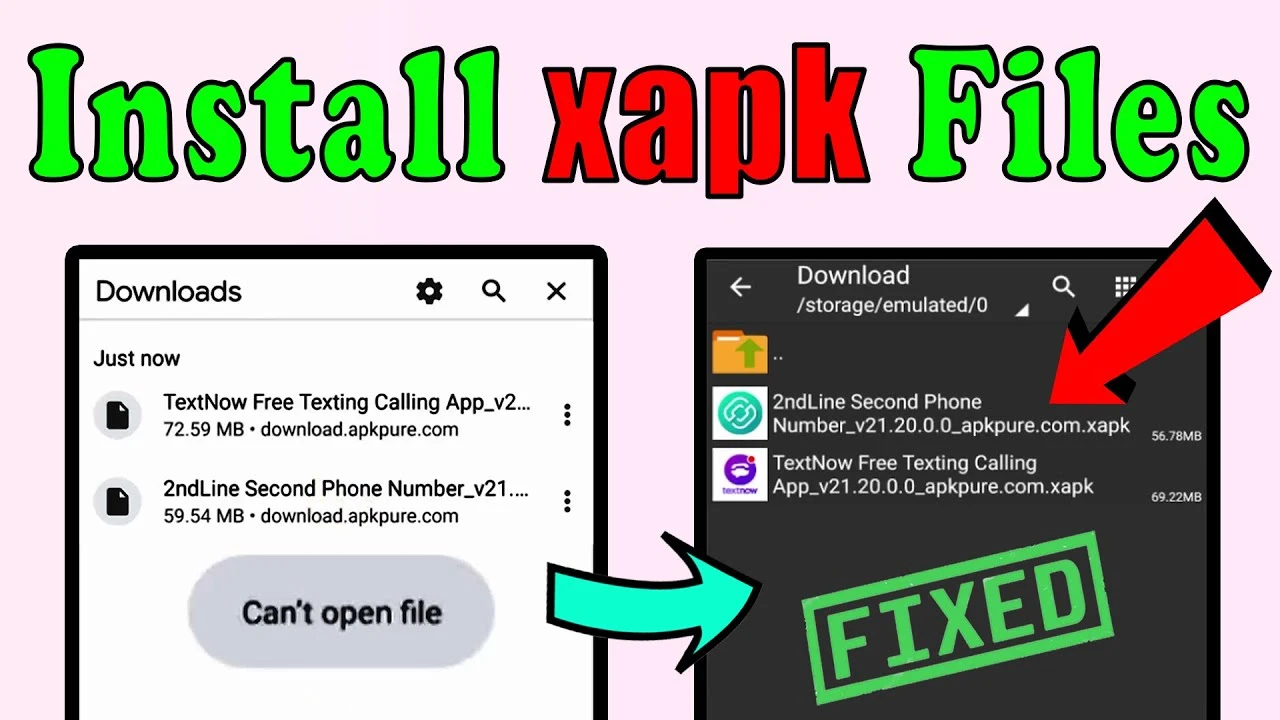
Modern Android games often come as .xapk or .apkm files to save bandwidth. You cannot install these by simply tapping on them.
Tools Required: You need a specialized installer app. We recommend ZArchiver or SAI (Split APKs Installer) available on the Play Store.
-
Download the XAPK/APKM file to your device.
-
Open ZArchiver (or your chosen installer tool).
-
Navigate to your Download folder.
-
Tap on the
.xapkfile and select Install.-
Note: The tool will automatically extract the OBB and APKs and place them in the correct folders.
-
-
Grant the installer permission to "Install Unknown Apps" if prompted.
Method 3: How to Install Games with OBB Data (Manual Way)
Some high-graphic games (like GTA or Call of Duty) require additional resource files called OBB. If you download a ZIP file containing an APK and an OBB folder, follow these steps:
-
Install the APK but DO NOT OPEN it yet.
-
Extract the ZIP file: Use a file manager to extract the downloaded archive.
-
Locate the OBB folder: You should see a folder named like
com.developer.gamename. -
Move the Folder: Move this entire folder to the internal storage path:
Internal Storage > Android > obb -
Final Check: The correct path should look like this:
Android/obb/com.developer.gamename/main.123.com.developer.gamename.obb -
Launch the Game: Now you can open the app.
Troubleshooting: Common Errors & Fixes
Here is how to fix the most annoying installation errors.
1. "App Not Installed" Error
This is the most common issue.
-
Cause: You still have the original version installed, or the MOD signature conflicts with a pre-installed system app.
-
Fix: Uninstall the official version from the Play Store completely.
-
Fix 2: Check your storage space. If storage is full, Android cannot unpack the APK.
2. "Parse Error" (There was a problem parsing the package)
-
Cause: The download file is corrupted, or the App requires a newer Android version than you have.
-
Fix: Re-download the file. If it persists, check the "Minimum Android Version" requirement of the MOD.
3. Black Screen / Game Crash on Launch
-
Cause: Missing OBB files or missing permissions.
-
Fix: Double-check that the OBB folder is in
Android/obb/. -
Fix 2: Go to App Info > Permissions and manually enable "Storage" and "Overlay" permissions.
4. "Download Pending" or Endless Loading
-
Cause: The game is trying to download data from Google Play but isn't connected to your account.
-
Fix: You must use the OBB installation method (Method 3) so the game has all data offline.
Frequently Asked Questions (FAQ)
Q: Do I need to root my phone to install MOD APKs?
A: No. 99% of MOD APKs work on standard, non-rooted Android devices. Rooting is only required for deep system modifications or hacking tools.
Q: Can I update a MOD APK via Google Play?
A: No. If you update via Google Play, it will overwrite the MOD with the official version, and you will lose the modded features. You must manually download the updated MOD APK version when it is released.
Q: Why does Play Protect warn me?
A: Play Protect warns against any app not verified by Google. While this is a good safety feature, it flags almost all MODs. If you trust the source, you can ignore the warning.
Final Thoughts
Installing MOD APKs opens up a world of possibilities, from Minecraft custom worlds to unlocked tools in CapCut. However, it is a technical process with real trade-offs.
By following this guide, understanding the difference between APK vs. XAPK, and knowing how to handle OBB files, you can control your Android experience safely. Always back up your data and be a responsible user.